Digital logic labs
for the whole class.
Run lab sessions and lab exams in the browser, with no lab bench or hardware to buy. Teachers publish assignments and follow every student’s circuit as it’s built. Students work in the LogicBench simulator, save automatically and submit when they’re done.
Classroom is in beta. The free simulator is unchanged and still needs no account.
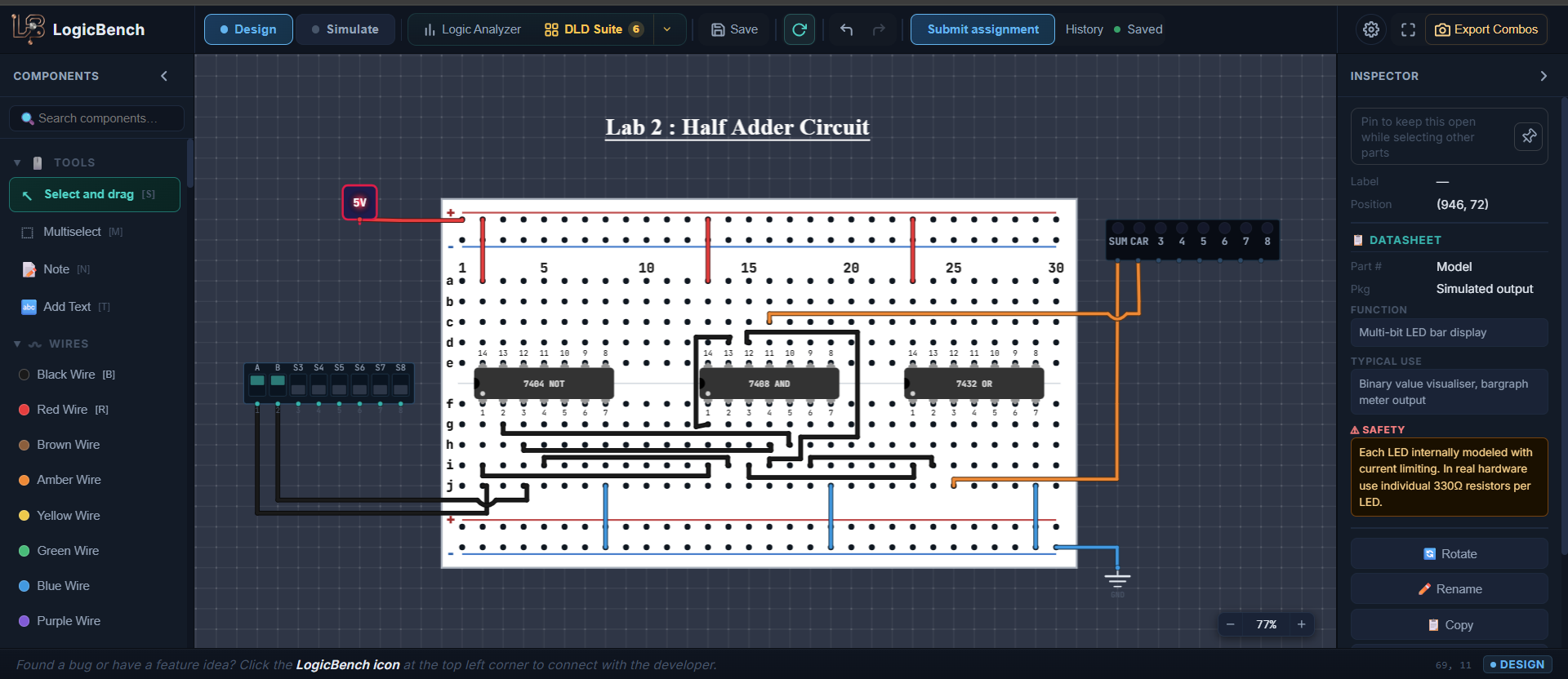
No hardware
Run labs and lab exams without a physical lab
Own circuits
Loading is disabled in assignments, so every submission is built from scratch
See progress
Open any student's circuit while they're still building it
Any device
Work saves to the cloud and resumes on any computer
Separate portals for teachers and students.
Teachers set up classes, publish assignments and follow progress. Students get one place for every assignment. Both work in the same simulator, so a teacher opens exactly what the student built.
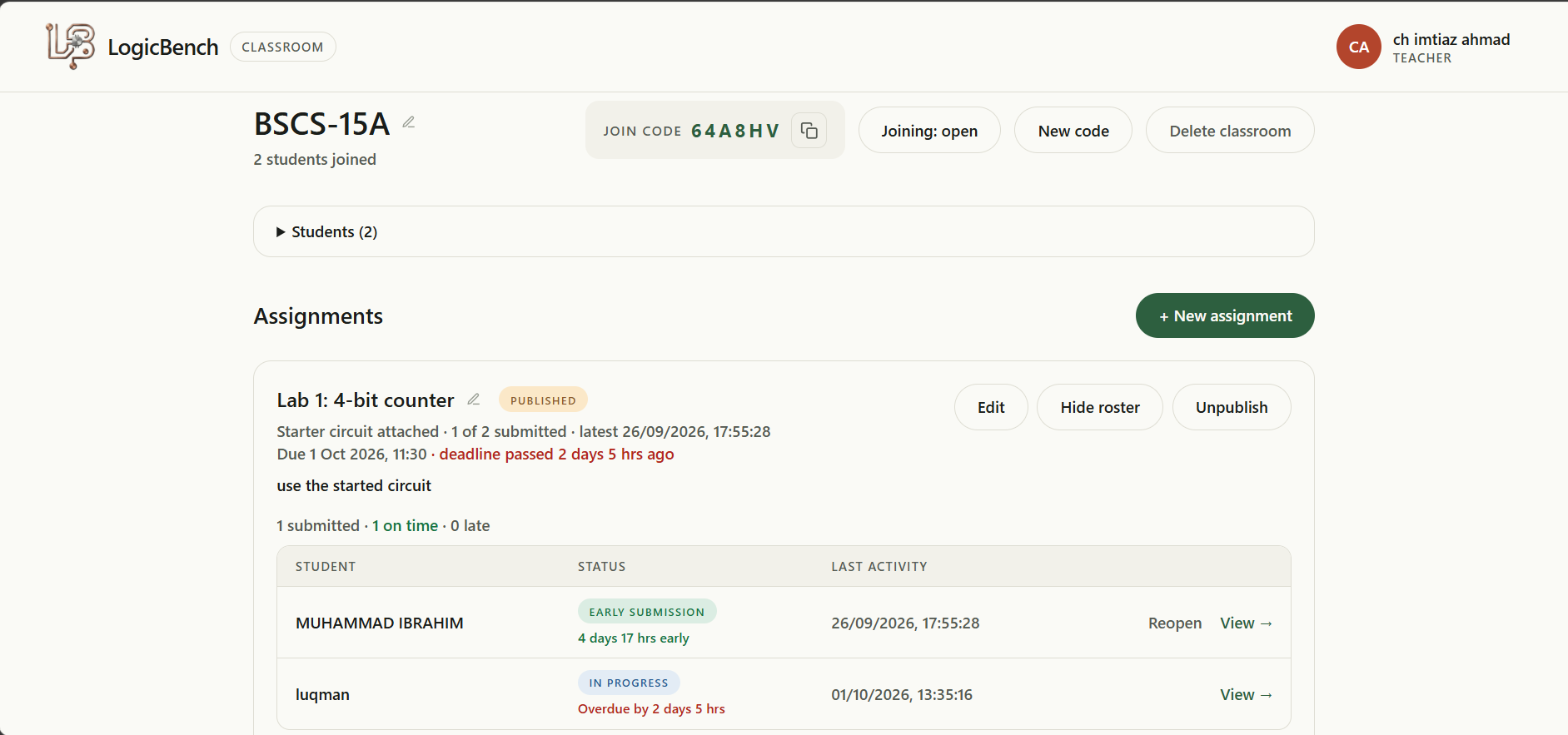
Create assignments and track submissions.
Set up a class in minutes and see where every student stands, without collecting files or checking benches one by one.
Classrooms and join codes
Create a classroom and share its six-character code. Students join on their own, so there's no roster to import and no accounts to set up for them.
Assignments with starter circuits
Write the instructions, attach a starter circuit when the task begins from a partial design, set an optional deadline and publish when it's ready. Edit the title, instructions, deadline or starter circuit at any time, and unpublish to hide it again.
Progress at a glance
The roster shows who hasn't started, who's working and who has submitted, with each student's latest activity and a submission count for every assignment.
Open any circuit
Open any student's circuit in the simulator, mid-build or after submission. It shows their latest autosave, you can run it to see how it behaves, and nothing you do changes their work.
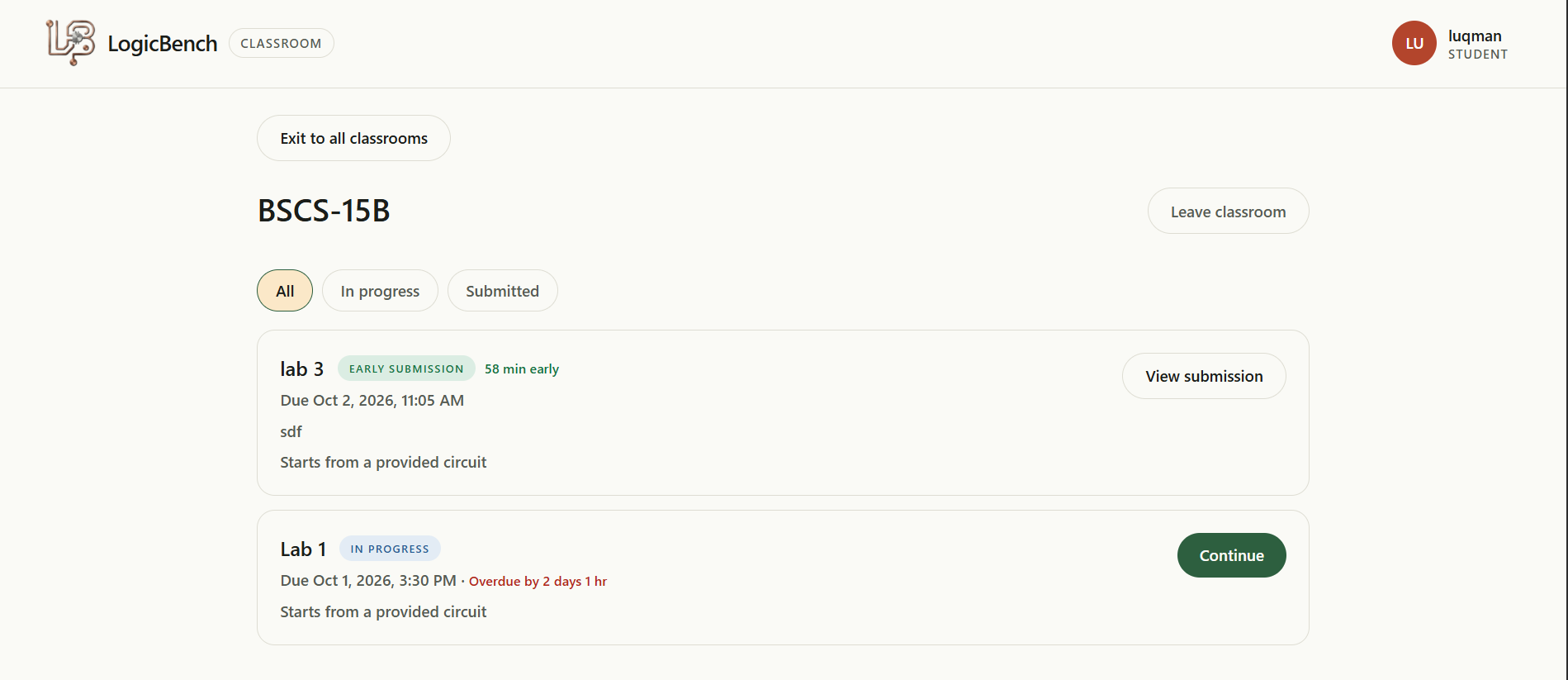
Build your circuit. Submit when you're done.
Join a class and find all your assignments in one place, on any computer with a browser.
One place for every class
Join multiple classrooms with one account and leave any of them at any time. Filter assignments by in progress or submitted, and see which ones start from a circuit your teacher provided.
A wider parts library
Assignments open in the full LogicBench simulator, with logic gates, flip-flops, counters, decoders, displays, sensors, a 555 timer and Arduino. That is far more parts than a typical lab kit holds.
Autosave on any device
Work saves to the cloud within seconds of every change, so a closed tab or a different computer never costs progress. If saving keeps failing, you're warned straight away.
Submit in one click
Submitting saves your latest circuit and locks it in the same step, and your teacher can open it straight away.
Every student builds their own circuit.
Assignments are set up so the work handed in is the work each student built, not a copy of someone else’s.
No loading circuits
Loading circuit files is disabled inside assignments, so students can't open a classmate's circuit. Everyone builds from a blank bench or from your starter circuit.
Locked on submit
Once submitted, a circuit can't be edited. What you review is exactly what the student handed in.
Reliable timestamps
Save and submission times can't be changed by students, so you can trust when the work was done.
Private to the class
Only the student and their classroom teacher can view an attempt. Other students and other teachers can't see it.
One attempt each
Every student gets a single attempt per assignment, tied to their own account.
Conflict warnings
If the same attempt is open in two tabs or on two devices, the older copy stops saving and shows a warning, so newer work is never overwritten.
Getting started.
Teacher
- 1Create a teacher account and set up a classroom
- 2Share the join code with your students
- 3Write an assignment, attach a starter circuit if needed, and publish it
- 4Follow the roster, open any circuit and review submissions
Student
- 1Create a student account
- 2Join your classroom with the code from your teacher
- 3Open a published assignment in the simulator
- 4Build your circuit, let it autosave and submit when you're done
What’s available in beta.
Classroom covers assigning, building, submitting and reviewing, which is enough to run a lab session or a lab exam today. Grading and feedback, exam timers, multiple attempts, analytics and LMS sign-in aren’t available yet, and there is no proctoring or copy detection.
Can I run lab exams on Classroom?
Yes, for exam-style lab work. Publish the assignment when the session starts, follow progress from the roster and open any circuit as students work, then review the submissions afterwards. Timers, proctoring and automatic grading aren't built in yet.
Do students need lab hardware?
No. Everything runs in the browser, including the components, Arduino and the analog engine, so students only need a computer. There are no component kits to buy, set up or replace.
Does the public simulator change?
No. The free simulator works as before and still needs no account. Classroom is a separate space that requires one.
Do students need an account?
Yes. Students need an account to join a classroom and submit work. Teachers need one to create classrooms and assignments.
Can a student edit an assignment after submitting?
No. Submitted circuits are locked. The teacher can still open them in the simulator, and can reopen a submission if a student needs to change it.
Can students use their own circuits in an assignment?
No. Loading circuit files is disabled during assignments, so students build their own circuit. Teachers can provide a starter circuit for everyone to begin from.
What if the connection drops while a student is working?
Autosave keeps retrying. If saving fails for more than a minute, the student sees a warning to check their connection.
What happens when a student leaves or a classroom is deleted?
When a student leaves a classroom, or a teacher removes them, their work is kept for 30 days and restored if they rejoin with the code. When a teacher deletes a classroom, it moves to Recently deleted for 30 days and can be restored with its students, assignments and work. After 30 days it is erased for good.
Can I set deadlines on assignments?
Yes. Set an optional deadline when you create an assignment, and change or remove it later. Students can still submit after the deadline. Late work is labelled Late submission in red with how late it was, and early work is labelled Early submission in green, in both the teacher and student portals.
Does Classroom support grading or LMS sign-in?
Not yet. Classroom is in beta and covers assigning, building, submitting and reviewing. If your course needs grading or LMS sign-in, contact us.
Set up your first classroom.
Create a classroom, share the join code and publish your first assignment. Your students only need a browser.